How Better Image Handling Can Improve Website Design and Performance
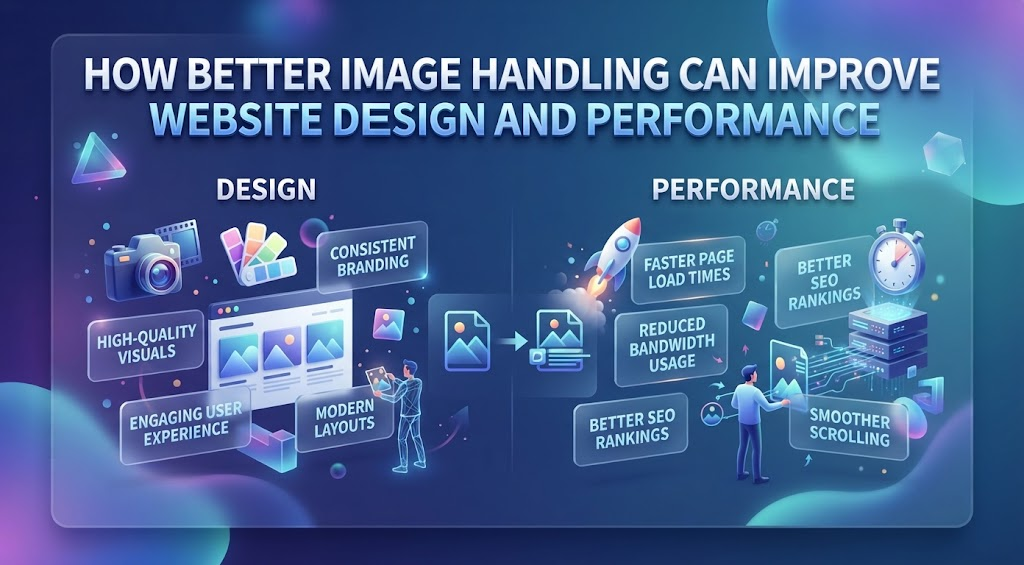
Images are one of the most important parts of modern websites. They help explain products, strengthen branding, support storytelling, and make pages more visually appealing. At the same time, images can also create performance problems when they are uploaded in the wrong format, at unnecessarily large dimensions, or without proper compression. Better image handling helps websites look polished while also loading more efficiently.
A strong image workflow considers more than visual quality. File size, format, dimensions, compatibility, accessibility, and reuse all matter. A high-resolution photo may look excellent, but if it is several times larger than needed, it can slow down a page. Similarly, a format that works well on one platform may not be ideal for editing, sharing, or uploading somewhere else. Good image handling means choosing the right version for the right purpose.
Format conversion can also be useful when teams move images between different systems. WebP is often efficient for websites, while JPG remains widely supported across editing tools, presentation software, and content platforms. When a more familiar format is needed, a WebP to JPG tool can make it easier to reuse an image without creating an unnecessarily complicated workflow.
Start With the Right Dimensions
One of the easiest ways to improve image performance is to upload files at appropriate dimensions.
A common mistake is using an image that is much larger than the website actually displays.
For example, a page may show a photo at 1,200 pixels wide, while the uploaded file is 5,000 pixels wide.
The browser still has to download the larger file.
That extra resolution may provide no visible benefit.
Resizing the image before uploading reduces unnecessary data.
This can improve loading speed without changing how the image appears to most users.
Compression Helps Reduce File Size
Compression is another important part of image handling.
It reduces the amount of data needed to store the image.
Lossy compression removes some visual information to create a smaller file.
Lossless compression reduces size without discarding information in the same way.
Photographs often work well with moderate lossy compression.
Graphics containing text or sharp details may require more careful settings.
The goal is not to make every file as small as possible.
The goal is to reduce unnecessary size while preserving enough quality.
Choose the Right File Format
Different image formats are useful for different purposes.
JPG works well for photographs and is widely supported.
PNG is useful for transparent graphics and screenshots.
WebP offers efficient compression for modern websites.
AVIF can provide even smaller files in some situations.
The best choice depends on the image itself.
A transparent logo may need PNG or WebP.
A large photograph may work better as JPG or WebP.
A screenshot may require a format that keeps text sharp.
Using the same format for everything is rarely the best approach.
Image Quality Should Match Importance
Not every image on a website needs the same level of detail.
A large hero image may need higher quality because it is highly visible.
A small thumbnail can usually use stronger compression.
A product photograph may need enough detail for customers to inspect it closely.
A decorative background can often be optimized more aggressively.
This helps prioritize bandwidth.
The most important visuals receive more quality.
Less important ones remain lightweight.
This balance can improve both performance and appearance.
Responsive Images Improve Mobile Experience
Websites are viewed on many screen sizes.
A large desktop monitor may need a bigger image.
A phone does not.
Responsive image techniques allow websites to deliver different versions based on the device.
A smaller image can be sent to mobile users.
A larger version can be provided to desktop visitors.
This reduces unnecessary data transfer.
It also improves loading speed on mobile connections.
Responsive delivery is especially useful for image-heavy websites.
Lazy Loading Speeds Up Long Pages
Not every image needs to load immediately.
A long article may contain ten or twenty images, but only the first few are visible when the page opens.
Lazy loading delays the rest until the user scrolls closer to them.
This allows the browser to prioritize visible content.
The initial page becomes usable faster.
This technique is useful for:
Blogs.
Product listings.
Portfolios.
News sites.
Image galleries.
Lazy loading works especially well when combined with compressed images.
Better Images Improve User Experience
Website performance affects how users feel about a site.
Slow-loading images can make a page feel unfinished.
Visitors may see blank areas or delayed content.
Layouts may shift as large files appear.
This can create frustration.
Fast image delivery creates a smoother experience.
Users can scan pages more easily.
Product images appear sooner.
Visual content feels more reliable.
Good image handling supports usability, not just technical performance.
Product Images Need Extra Attention
Ecommerce websites depend heavily on images.
Customers cannot physically inspect the product.
They rely on photographs to evaluate:
Color.
Texture.
Shape.
Size.
Features.
This means product images need enough detail to remain useful.
At the same time, product pages often contain several photos.
Very large files can make those pages slow.
A practical solution is to use optimized preview images and provide larger versions for zooming.
This keeps browsing fast while preserving access to detail.
Screenshots Need Sharp Detail
Screenshots are different from photographs.
They often contain small text, icons, and interface elements.
Heavy compression can make these details blurry.
This creates problems in tutorials, support documents, and product guides.
For screenshots, clarity may be more important than aggressive file reduction.
PNG or carefully optimized WebP can often work well.
The best option depends on how much detail the screenshot contains.
If the text becomes hard to read, the optimization has gone too far.
Keep Original Files
Optimized website versions should not replace high-quality originals.
A compressed image may be perfect for the web but unsuitable for future editing or print.
Keeping original source files provides flexibility.
The same visual may later be needed for:
Social media.
Presentations.
Advertising.
Print materials.
Larger website layouts.
New campaigns.
A good workflow keeps the original and creates optimized copies for specific uses.
This also avoids repeated compression.
Repeated Compression Can Reduce Quality
Lossy image formats can lose quality when saved again and again.
Each new save may remove additional information.
Over time, the image can become visibly degraded.
This is especially common with JPG files.
The better approach is to return to the original high-quality file when creating a new version.
This preserves more detail and prevents quality loss from accumulating.
Good image handling includes version control as well as compression.
File Naming Improves Organization
Clear file names make image libraries easier to manage.
A name such as homepage-hero-image.jpg is more useful than IMG_9348.jpg.
This is particularly helpful for teams managing large websites.
Good naming makes it easier to:
Find files.
Replace older images.
Identify approved versions.
Reuse existing assets.
Avoid duplicates.
File names should remain simple and descriptive.
A consistent naming system saves time later.
Avoid Duplicate Files
Duplicate images create confusion.
A team may end up with files named:
banner-final.jpg
banner-final2.jpg
banner-final-new.jpg
banner-final-approved.jpg
This makes it difficult to know which version is correct.
A better workflow keeps a clear source file and one approved export for each use case.
Older versions can be archived if needed.
Reducing duplicates makes image libraries easier to maintain.
It also lowers the risk of publishing outdated visuals.
Organize Images by Purpose
Folder structure can make image management much easier.
Files can be organized by:
Project.
Campaign.
Website section.
Client.
Content type.
Date.
The exact system matters less than consistency.
Everyone on the team should know where to find approved assets.
This becomes especially important when several people contribute content.
Good organization reduces wasted time and repeated work.
Image Handling Supports Brand Consistency
Images are part of brand identity.
Teams may use:
Logos.
Product photography.
Illustrations.
Icons.
Backgrounds.
Campaign graphics.
If these assets are poorly organized, different versions may appear across different platforms.
This weakens consistency.
A central image library helps everyone use approved visual assets.
It also makes updates easier.
When branding changes, teams know which files need to be replaced.
Compatibility Should Be Considered
The most efficient web format is not always the easiest format for every other tool.
A website may display WebP perfectly.
A presentation program may handle JPG more reliably.
A client may request PNG.
An older editor may not support a newer format.
This is why compatibility is part of image management.
Instead of relying on one universal format, teams may need several versions for different purposes.
The key is keeping those versions organized.
Conversion Should Be Intentional
Image conversion can solve compatibility problems, but it should not be done randomly.
Changing from one format to another can affect:
Transparency.
Compression.
File size.
Image quality.
Editing flexibility.
Before converting, check what the destination requires.
For example, converting a transparent PNG to JPG will remove transparency.
Converting repeatedly between lossy formats may reduce quality.
Conversion works best when there is a clear reason.
Alt Text Improves Accessibility
Image handling also includes accessibility.
Alt text provides a description of meaningful images for users who rely on screen readers.
This is especially important for:
Product images.
Charts.
Diagrams.
Infographics.
Instructional visuals.
Alt text should explain what matters in the image.
It should not simply repeat the file name.
Making alt text part of the upload process reduces the chance that it will be forgotten.
Metadata Should Be Reviewed
Image files may contain metadata such as:
Camera settings.
Creation dates.
Editing software.
Copyright details.
Location information.
Some metadata is useful.
Other information may be unnecessary.
Removing unneeded metadata can slightly reduce file size.
It can also avoid publishing information that was not intended to be public.
Many optimization tools handle this automatically, but teams should still understand what their image files contain.
Content Delivery Networks Can Help
A content delivery network, or CDN, stores copies of files in different locations.
When someone visits a website, images can be delivered from a server closer to them.
This may reduce loading time.
CDNs are particularly helpful for international audiences.
Some image CDNs can also:
Resize files.
Compress images.
Create modern formats.
Deliver responsive versions.
This reduces manual work.
However, important images should still be reviewed to make sure automated processing has not reduced quality too far.
Image Management Can Support SEO
Better image handling can indirectly support search performance.
Smaller files can improve page speed.
Responsive images can improve mobile usability.
Alt text can provide context.
Descriptive file names can support organization and clarity.
However, image optimization is only one part of SEO.
Content quality, relevance, site structure, and technical health still matter.
Image handling is most valuable when it improves the overall user experience.
Social Media Needs Different Versions
The same website image may not work perfectly on every social platform.
Different channels use different dimensions and cropping behavior.
Some compress images automatically.
Others prefer certain file types.
This is why keeping flexible source files is important.
Teams can create platform-specific versions without damaging the original.
This usually creates better visual results than forcing one file to work everywhere.
Regular Image Audits Help
Image libraries can become messy over time.
Older files may be:
Oversized.
Unused.
Duplicated.
Poorly compressed.
Outdated.
Missing alt text.
Using old branding.
Regular audits help identify these problems.
Cleaning old assets can improve both website performance and team workflow.
Image management should be ongoing rather than something done only during a redesign.
Automation Can Save Time
Large websites often need automated image processing.
A content management system may automatically:
Resize uploads.
Compress files.
Generate WebP versions.
Create multiple responsive sizes.
Enable lazy loading.
This reduces repetitive work.
Automation is especially useful when many editors contribute content.
However, it should not remove human review entirely.
Hero images, product photos, and important marketing visuals may still need manual quality checks.
Test Across Devices
An image can look different depending on the screen.
Compression artifacts may be difficult to notice on a phone but obvious on a large monitor.
Text inside an image may look fine on desktop but become unreadable on mobile.
Testing helps catch these problems.
Important website pages should be reviewed on:
Phones.
Tablets.
Laptops.
Large monitors.
Different connection speeds.
Real-world testing provides better insight than looking only at file size.
Keep the Workflow Simple
Image management does not need to be complicated.
A practical workflow can be:
Choose the right format.
Resize the image.
Compress it appropriately.
Use a clear file name.
Add alt text.
Upload the optimized version.
Keep the source file.
Store it in the correct folder.
Simple systems are more likely to be followed consistently.
Complicated processes often get ignored.
Better Image Handling Saves Time
Good image management improves more than performance.
It also makes work faster.
Designers can find existing assets instead of recreating them.
Editors know which version is approved.
Developers receive correctly sized files.
Marketing teams can reuse visuals across platforms.
Content managers can replace outdated images easily.
These efficiencies become more valuable as a website grows.
Good image handling becomes part of a stronger overall content workflow.
Conclusion
Better image handling improves both website design and performance by combining visual quality with efficient delivery. Choosing the right format, resizing oversized files, compressing carefully, using responsive images, and keeping high-quality originals can make a website faster and easier to maintain.
Strong image management also supports accessibility, brand consistency, compatibility, and smoother collaboration.
The goal is not simply to reduce file sizes. It is to create a reliable system where every image is appropriate for its purpose, easy to find, visually clear, and efficient to deliver.
When images are handled thoughtfully, websites become faster, cleaner, and more professional without sacrificing the visual quality that makes digital content engaging.